Message Builder
The Message Builder is a powerful tool that lets you create polished, fully customized Discord embeds for nearly every module. This page walks you through the interface, explains each feature, and answers frequently asked questions.
Overview
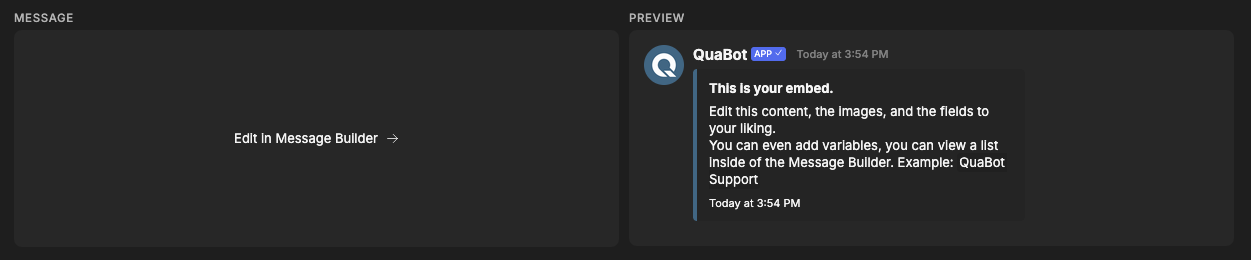
The Message Builder consists of two main sections:
- Left side: A button that opens the editor (“Edit in Message Builder”).
- Right side: A live preview of your message. Any changes you make are updated instantly in the preview. (You still need to save the whole module afterwards.)
Discord Messages and Their Limits
A Discord message consists of multiple parts, each with its own limitations:
Message
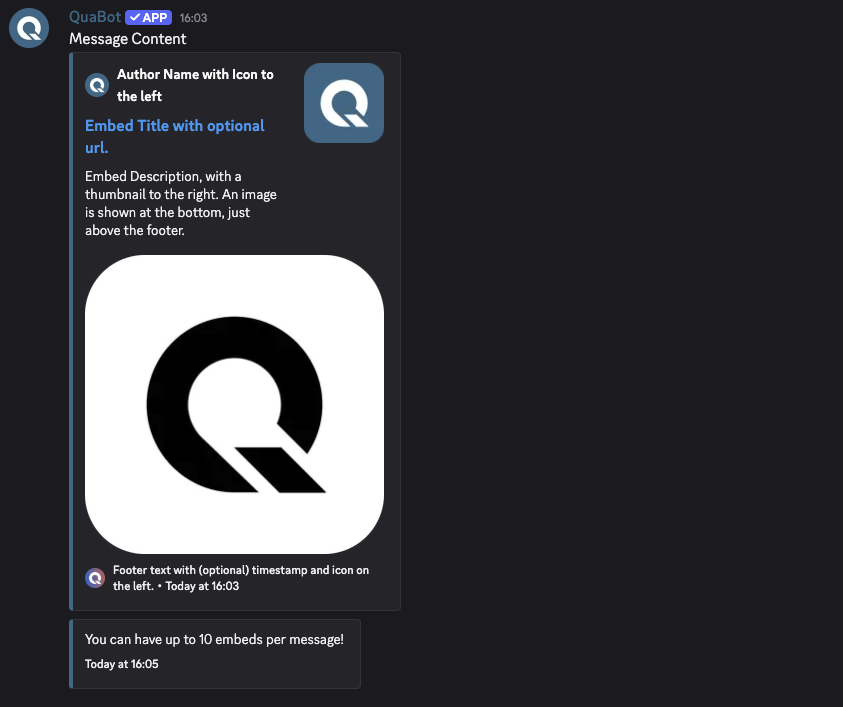
- Message Content: Text above all embeds. Supports markdown. Max 2000 characters.
- Embeds: Up to 10 embeds per message, with a combined total of 6000 characters.
- Components: Optional buttons, menus, etc.
Embeds
- Title: Up to 256 characters.
- Title URL: Optional URL (only if a title is set).
- Description: Up to 4096 characters, supports multiline and markdown.
- Timestamp: Shows the embed’s date.
- Color: The colored bar on the left side.
- Footer: Optional icon, text (max 2048 chars), and optional timestamp.
- Image: Full-width image at the bottom.
- Thumbnail: Small image on the right.
- Author: Icon, text, and optional URL. Max 256 characters.
- Fields: Up to 25 fields.
- Field name: max 256 characters
- Field value: max 1024 characters (markdown supported)
- Inline fields are displayed in rows of up to 3.
Editing a Message
Clicking “Edit in Message Builder” opens the editing popup.
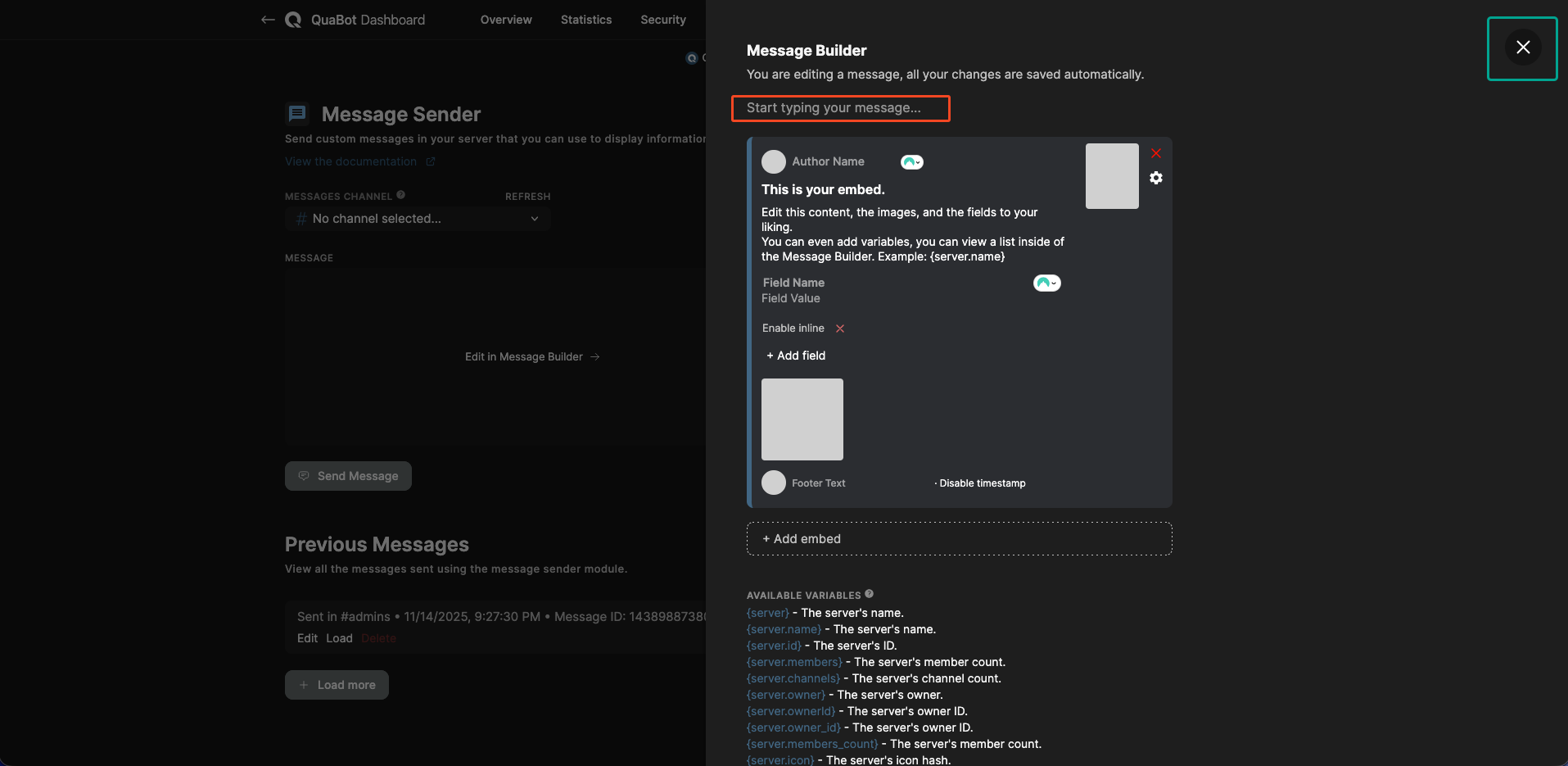
- Green outline: Close button (returns to preview).
- Red outline: Message content editor — type directly into it.
Below the content area, you will see the embed list. Each embed can be edited or deleted individually.
Editing an Embed
Basics
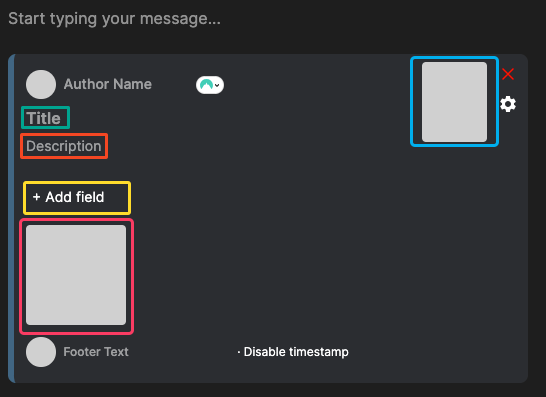
- Title (green): Click to edit.
- Description (red): Markdown supported.
- Fields (yellow):
- Click Add Field to create one.
- Enter field name + value.
- Toggle inline mode. (Display next to each other)
- Remove a field using the red X.

Image & Thumbnail:
- Click the gray image areas to upload or enter a URL.
- Thumbnail = right side (blue outline)
- Image = bottom (pink outline)
- Both support variables (see “Using Variables”).
- The popup shown below will open, use the upload icon to upload an image and enter a url in the field to enter a variable or custom URL.

Advanced Features
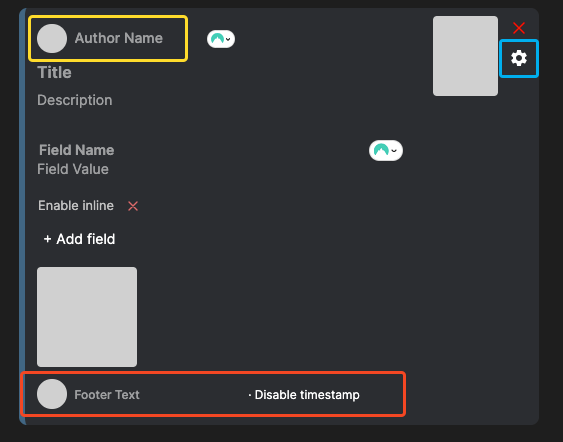
Author (yellow):
Click the icon to upload or enter an icon URL; edit the text next to it.Footer (red):
Upload an icon and add footer text.
Toggle timestamp on/off.Color (blue) & Title URL (red):
Click the settings icon to open the advanced popup:

Adding & Removing Embeds
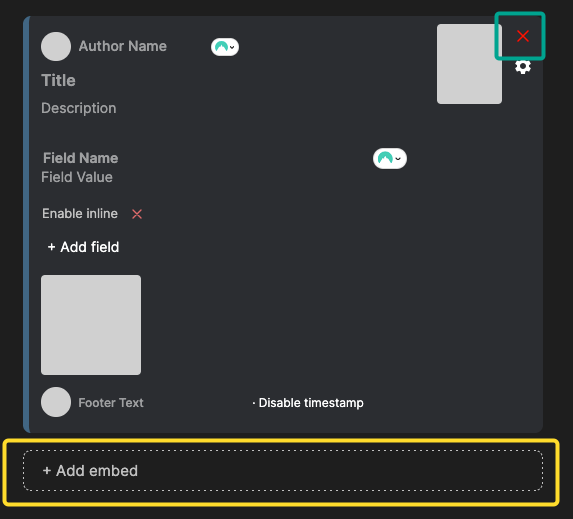
- Use “Add Embed” (yellow) to create a new embed.
- Click the red X (green) in the top-right of an embed to delete it immediately.
Using Variables
If the module supports variables, a list will appear below the embeds. Variables insert live server/user data into your message.
Example:
Welcome to {server.name} {user}! You are the {members}th member!
becomes
Welcome to QuaBot Server @Username! You are the 50th member!
Variables also work for image fields (e.g., user avatars, server icons).
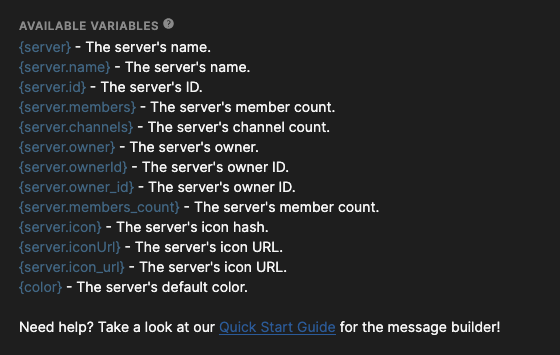
If a variable doesn't preview correctly, it will still work in Discord. Our preview renderer is continuously improving.
Frequently Asked Questions
What is an embed?
You can read the full explanation above in the section Discord Messages and Their Limits.
Why does the preview show incorrect data?
The website doesn't have access to the bot’s real-time data. Variables will be accurate only in your Discord server.
Markdown doesn’t fully render in the preview — will it still work?
Yes. The preview only supports:
- Bold
- Italic
StrikethroughCode- ||Spoilers||
All other markdown will work normally in Discord - it won't show up on the preview.
A variable isn’t showing correctly in preview — is it broken?
Likely not. It should still work in the final message. If not, please contact us on Discord.
Do you need additional support?
Most commands should have either of these two ways to manage permissions, but some commands might only have one of them. If you have any questions or need help, feel free to reach out to our support server. We're here to help you get the most out of QuaBot!