Starboard
Boost engagement by showcasing popular messages in a dedicated channel once they reach a set number of reactions.
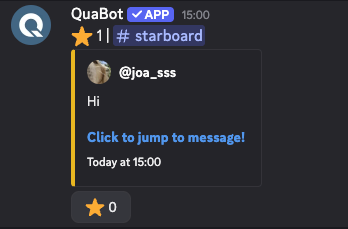
The Starboard highlights messages that your community loves. When a message hits the required number of stars (or any emoji you choose), the bot reposts it in a special starboard channel with all relevant info — who posted it, how many stars it has, and a jump link. Once the message has been sent, a button is available and users can add aditional stars on the starboard message itself.
Overview
The starboard is a fun way to highlight great messages, memes, announcements or anything that your community enjoys. You decide:
- Which emoji counts as a “star”
- How many reactions are required
- Where the starred messages are posted
- Optional: custom messages for each starboard
You can also create multiple starboards, each with their own channels, emoji, and required star count.
How it Works
When someone reacts using the configured emoji:
- QuaBot checks the message and reaction.
- If the reaction count reaches the required amount:
- A starboard post is created in the target channel.
- The starboard post has a button that users can add virtual stars with.
If the count later drops below threshold, the starboard post is not removed automatically. This is being added in a future update. Example message:
General Settings
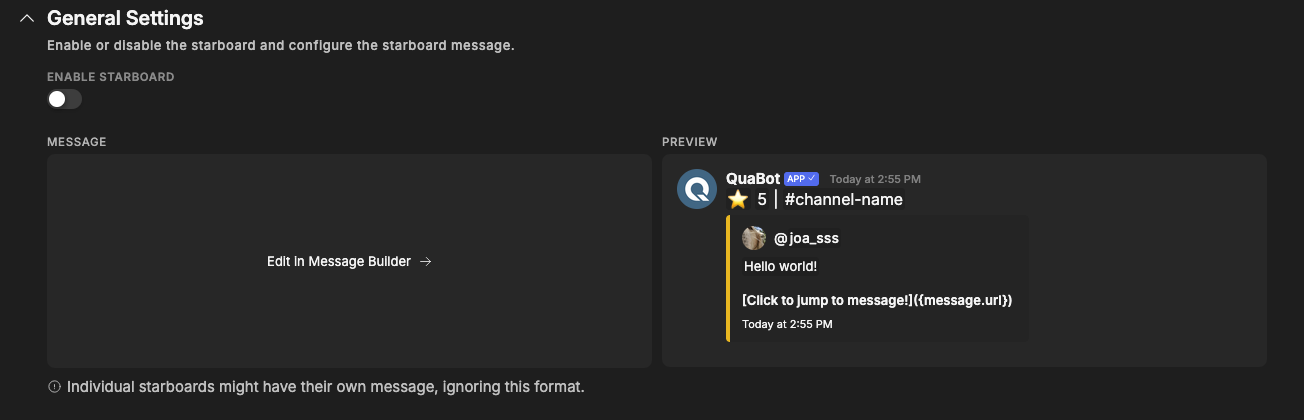
Enabled
Enable or disable the starboard module for your server.
If disabled, no messages will be tracked or posted.
Starboard Message Format
This is the default message QuaBot sends when a message hits the required number of stars. You can customize the entire message using the Message Builder. Once the message has been sent, a button is available and users can add aditional stars on the starboard message itself.
Note:
Individual starboards can override this format with a custom message.
Starboards
You can create and manage multiple starboards.
This allows setups like:
#starboardfor general chat- High‑end “highlight” starboards with stricter thresholds
Each starboard has its own configuration.
Creating a Starboard
Click the Add Starboard button to make a new one. You then click on the name of the new starboard, and a dropdown will open. You can configure it in there.
You can configure:
Starboard Name
A name used on the dashboard to identify the starboard.
Starboard Channel
The channel where starred messages will be sent.
Required Stars
How many reactions a message needs before being posted.
Starboard Emoji
Which emoji counts. Only regular emojis are supported at this time.
Custom Starboard Message
Override the general message format for this specific starboard.
Auto-Remove
Automatically delete the starboard entry after a chosen duration (e.g.
1h,1d,7d).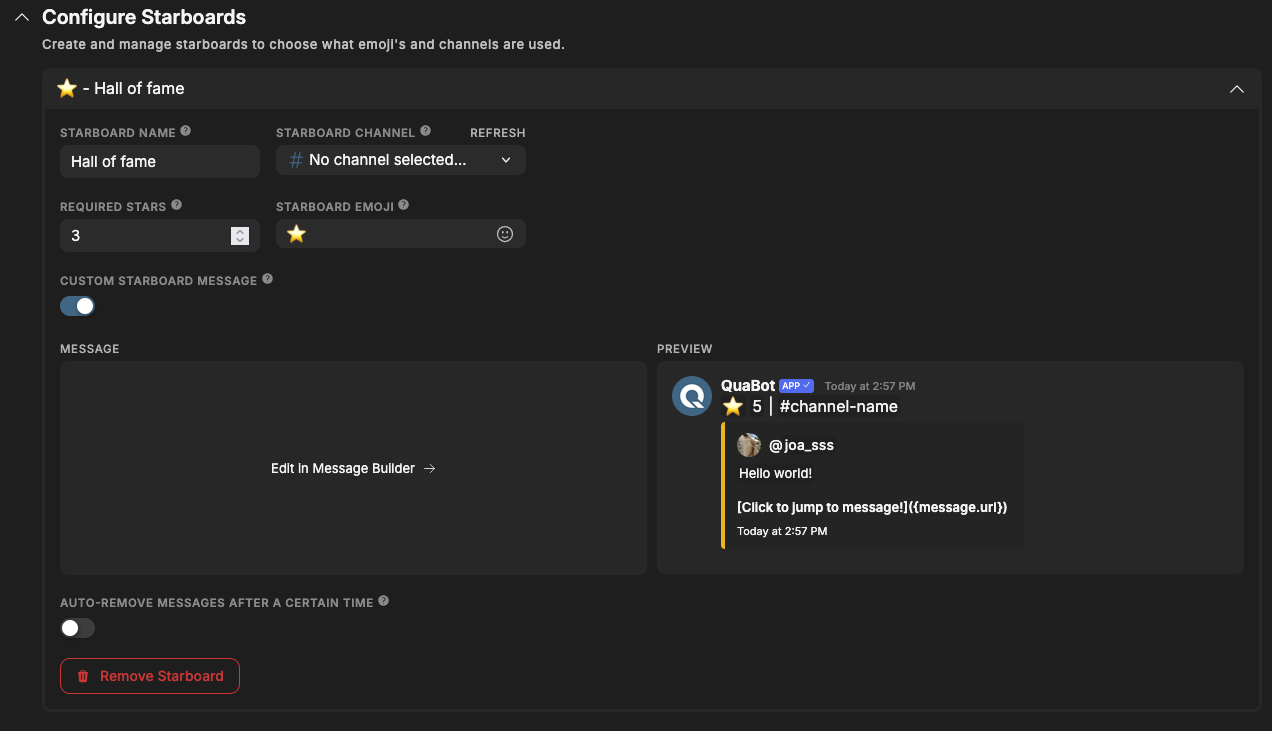
Deleting & Editing a Starboard
In order to edit or delete a starboard, click on the starboard's name. The dropdown will open revealing the settings & configuration. You can edit the settings here, the same was as you created a starboard At the bottom, there is a 'Delete Starboard' button to delete the starboard. Make sure to save your changes after you edit or delete a starboard.
Ignored Channels & Roles
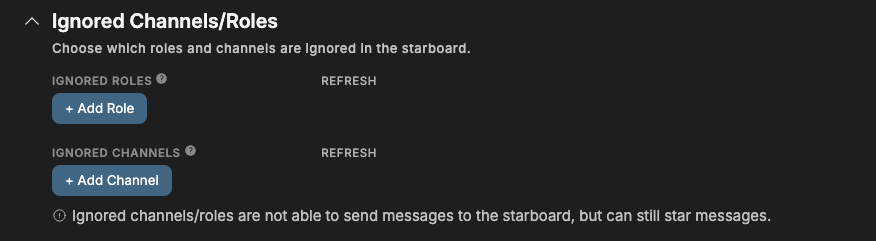
Some channels or groups should not count toward the starboard — for example bots, users that haven't been in your server very long, etc.
You can select:
- Ignored Roles
- Ignored Channels
Messages from these roles or channels will not be added to the starboard. They can still react to others.
Frequently Asked Questions
Why isn’t my message appearing on the starboard?
Possible causes:
- Not enough reactions yet.
- Wrong emoji (must match the starboard’s emoji).
- Message is from an ignored channel or user.
- Starboard module is disabled.
- The bot lacks permissions in the starboard channel. More info about permissions can be found on the Permissions Page.
Can I have multiple starboards?
Yes — each with its own settings.
Can I use custom emojis?
Yes.
Can I use starboard only for media?
No not at this time. We are adding this in a future update.
Can I star my own messages?
Yes.
Why are starboard posts duplicated?
You probably have two starboards with the same emoji and channel.
Disable or edit the duplicates.
Can I edit a starboard post after it’s published?
No, but you can:
- Update the starboard format for future posts
- Delete the message manually
Does the starboard repost attachments?
Not at this time. We are adding this in the future.
Does the starboard support custom emojis?
Not at this time. We are adding this in the future.
Need Help?
Join our Discord server for support, bug reports, and setup help.